VERATIME

WHAT IS VERATIME / HOW IT WORKS

Inside VeraTime Race.

Real images from the MHSSCA presentation, with the practical steps behind each screen.

01

The work timing crews used to recopy

Phone captures connect the start, finish, crew and spreadsheet without manually transcribing every crossing.
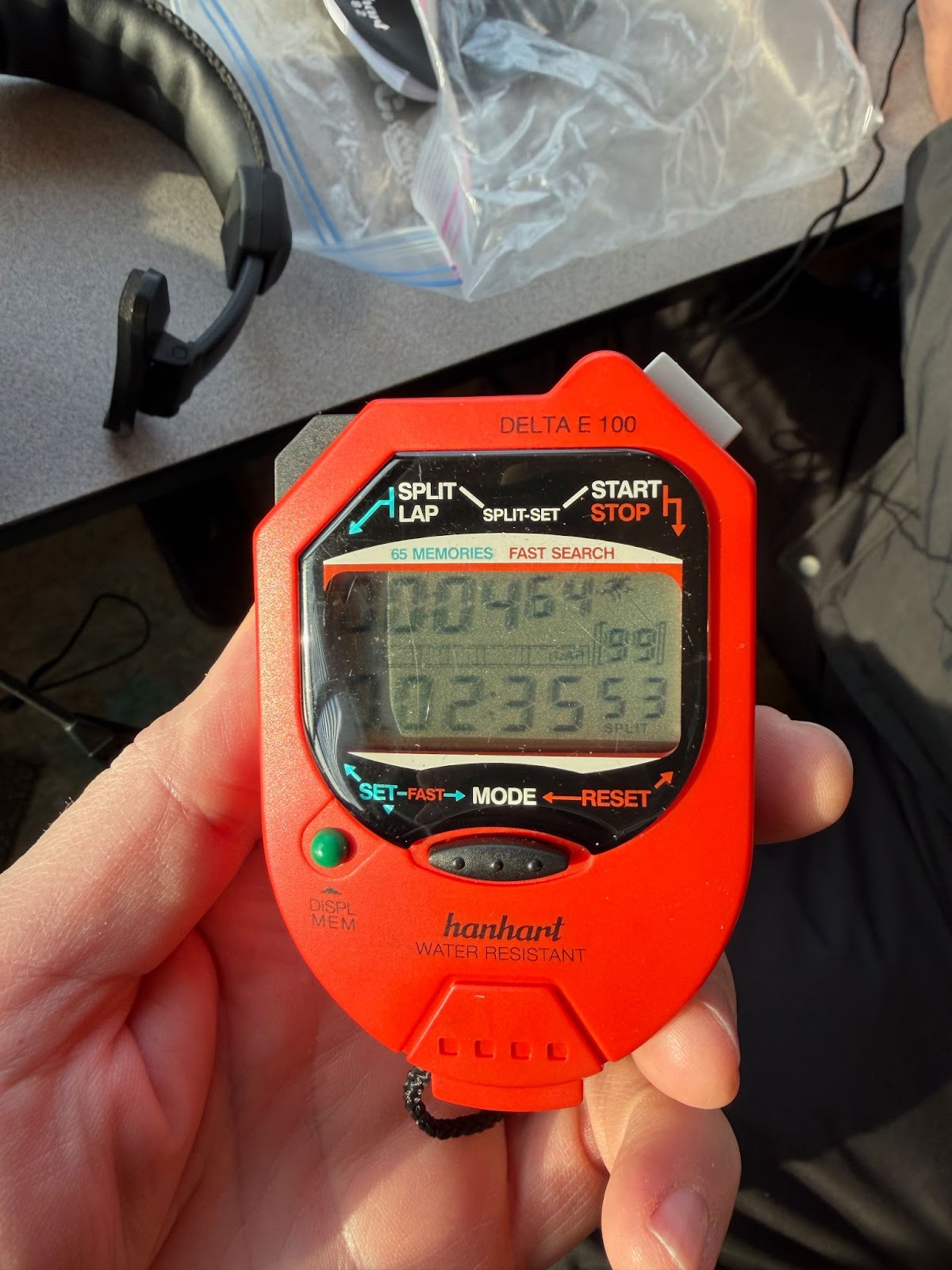

The stopwatch-and-paper workflow that connected records replace.
The stopwatch-and-paper workflow that connected records replace. Presentation · slide 2
The desktop completes the timing workflow.
The desktop completes the timing workflow. Presentation · slide 4
Share the appropriate session details with your crew.
Share the appropriate session details with your crew. Presentation · slide 4
One connected timing record.
One connected timing record. Presentation · slide 4
Short crew communication keeps everyone aligned.
Short crew communication keeps everyone aligned. Presentation · slide 4
02

Create, join and take your position

Choose the correct session and role before the first racer.
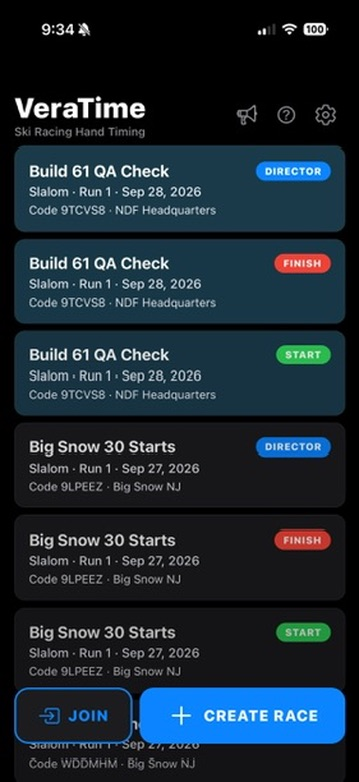
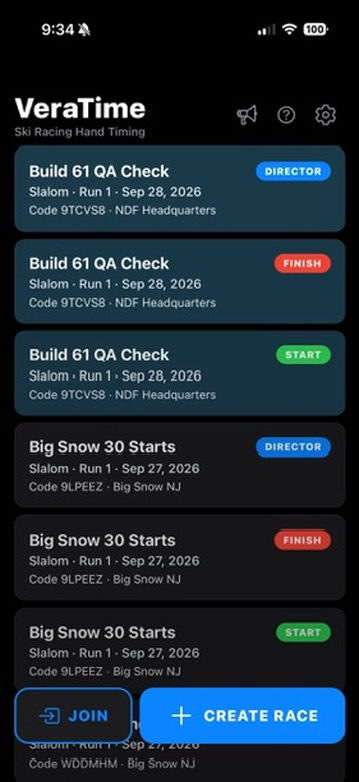
Your saved sessions are one tap away.
Your saved sessions are one tap away. Presentation · slide 5
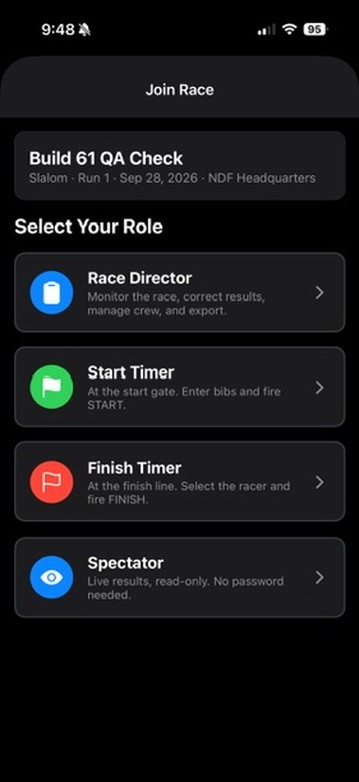
Choose the role you will operate.
Choose the role you will operate. Presentation · slide 5
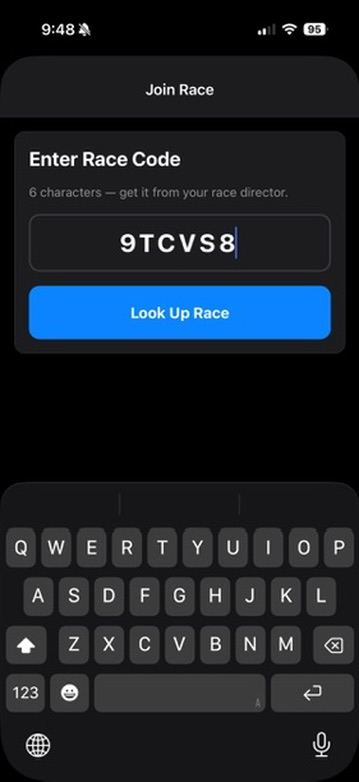
Join the same race with the crew’s code.
Join the same race with the crew’s code. Presentation · slide 5
Return to the session you already created.
Return to the session you already created. Presentation · slide 8
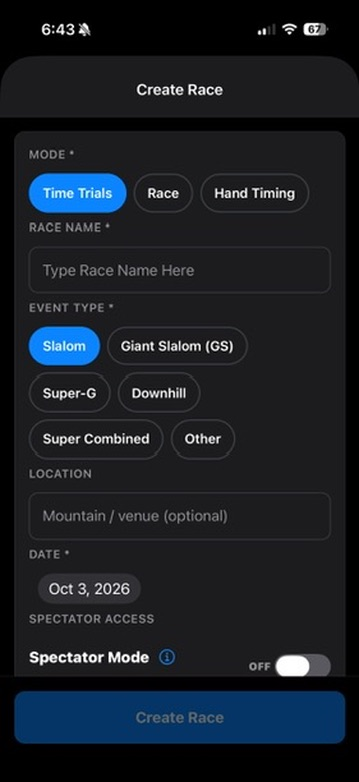
Choose Hand Timing, Time Trials or Race/Scrimmage.
Choose Hand Timing, Time Trials or Race/Scrimmage. Presentation · slide 10
03

Start and finish

Confirm the bib, watch the agreed reference and preserve the capture. Unknown bibs can be assigned after the finish.
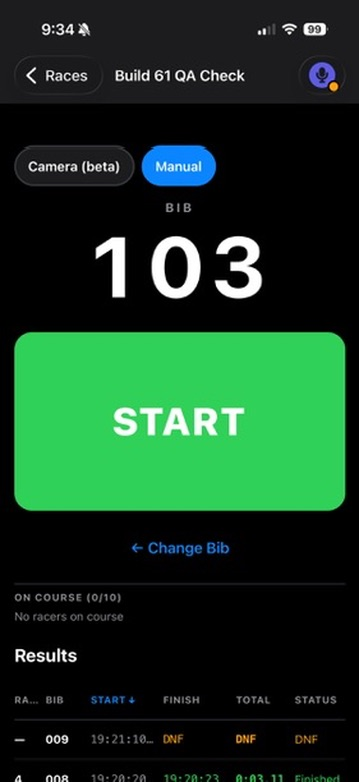
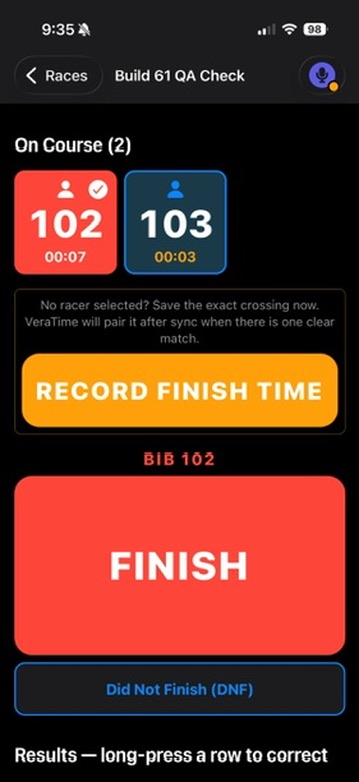
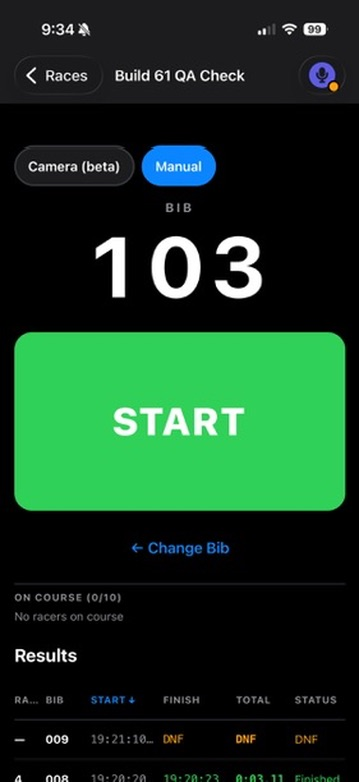
START: a confirmed bib and one clear capture control.
START: a confirmed bib and one clear capture control. Presentation · slide 3
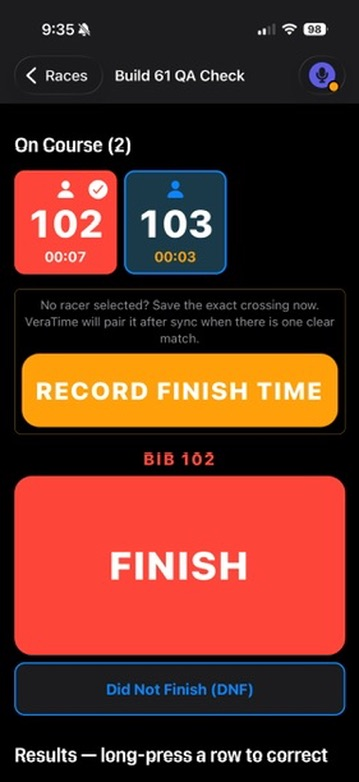
FINISH: preserve the time, then resolve the bib.
FINISH: preserve the time, then resolve the bib. Presentation · slide 3
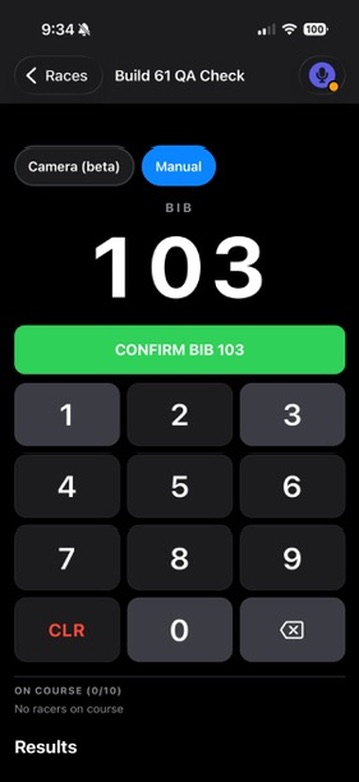
Enter and confirm the next bib.
Enter and confirm the next bib. Presentation · slide 6
Prepare the next start before the racer leaves.
Prepare the next start before the racer leaves. Presentation · slide 6
Select on-course racers or save an unassigned finish.
Select on-course racers or save an unassigned finish. Presentation · slide 7
04

Director, crew and spectators

Review the session, check crew status and control read-only spectator access.
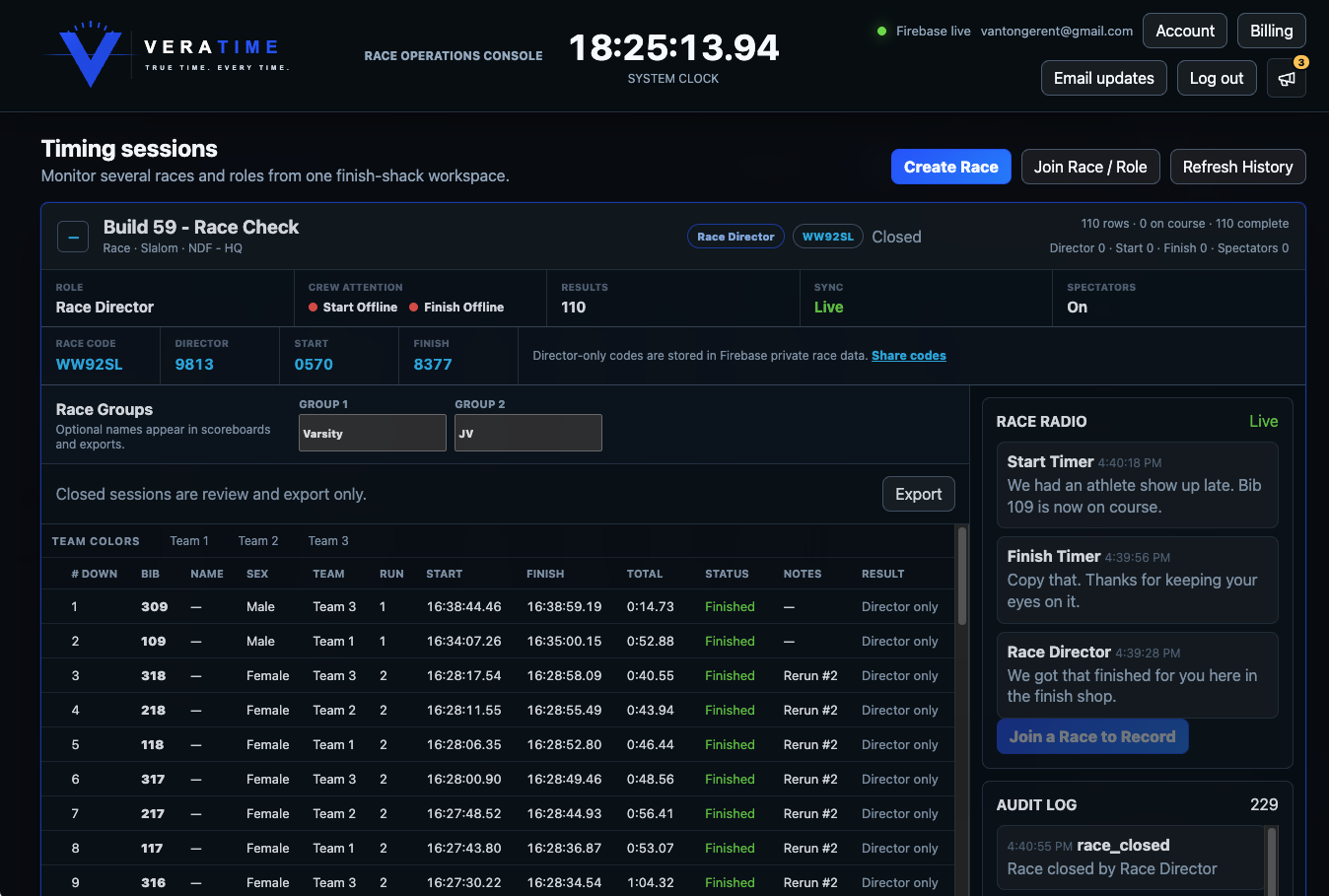
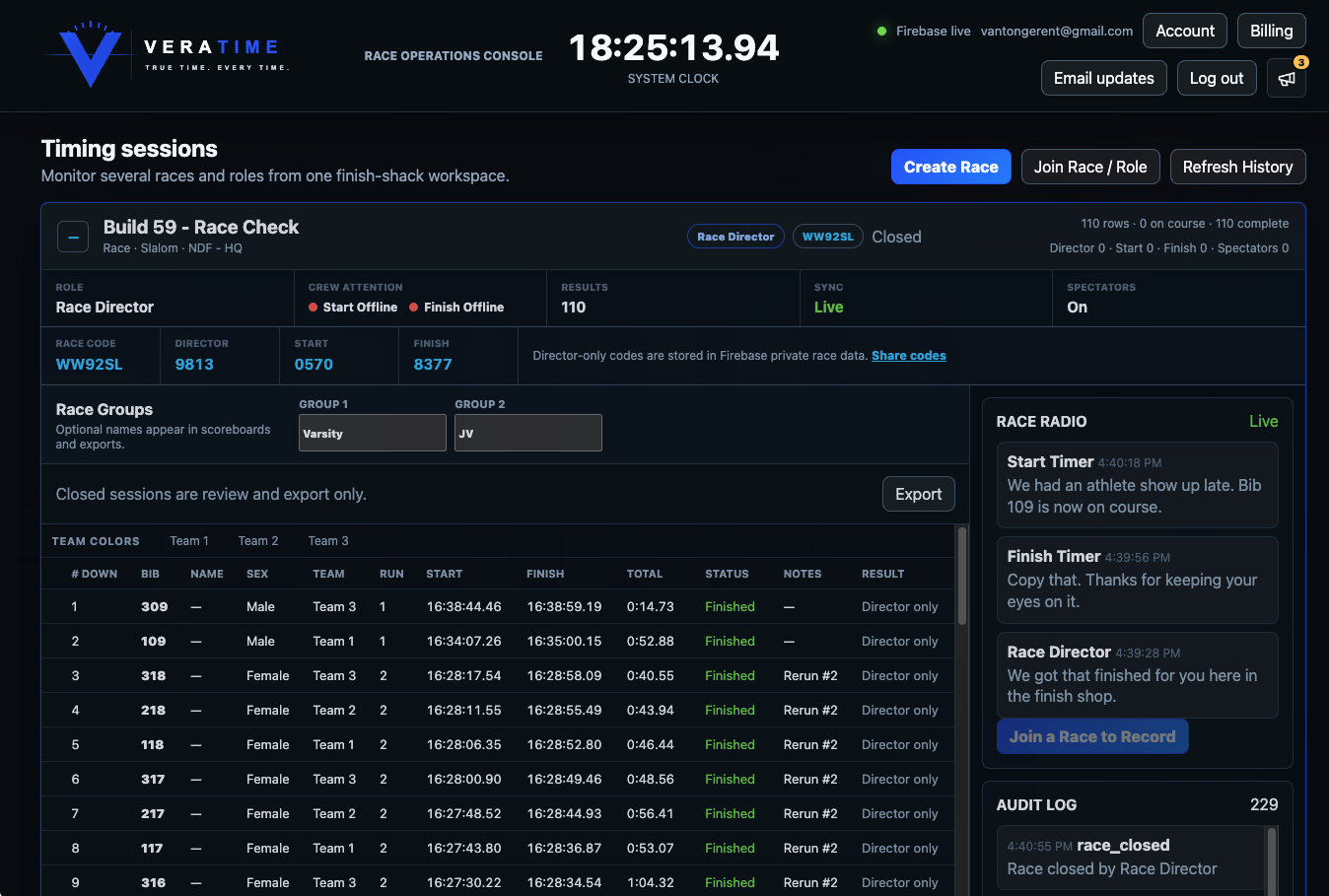
The web console brings crew status and timing records together.
The web console brings crew status and timing records together. Presentation · slide 4
Director controls: setup, status and review.
Director controls: setup, status and review. Presentation · slide 8
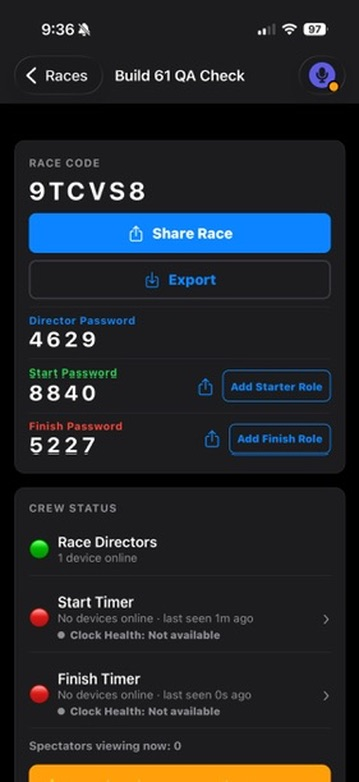
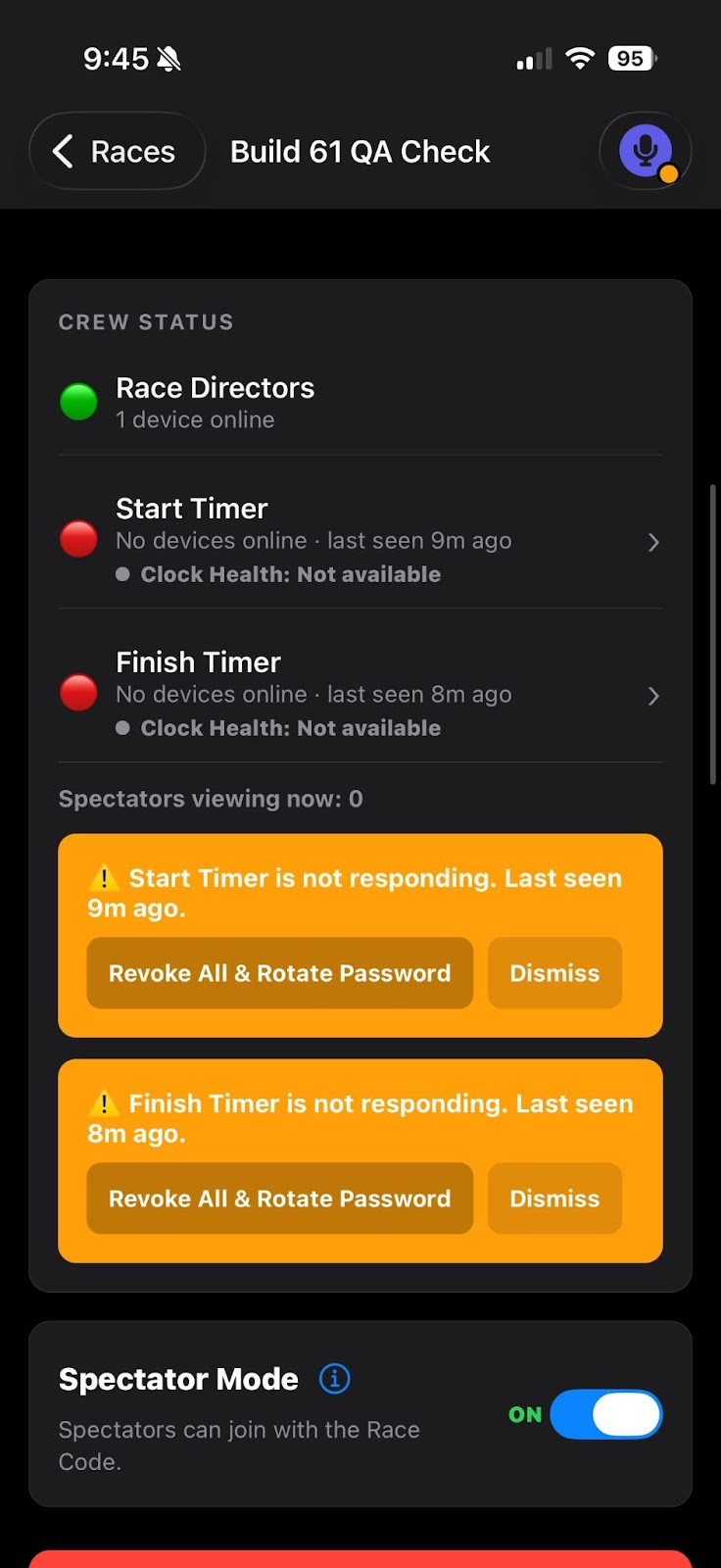
See timing-crew status and control spectator access.
See timing-crew status and control spectator access. Presentation · slide 11
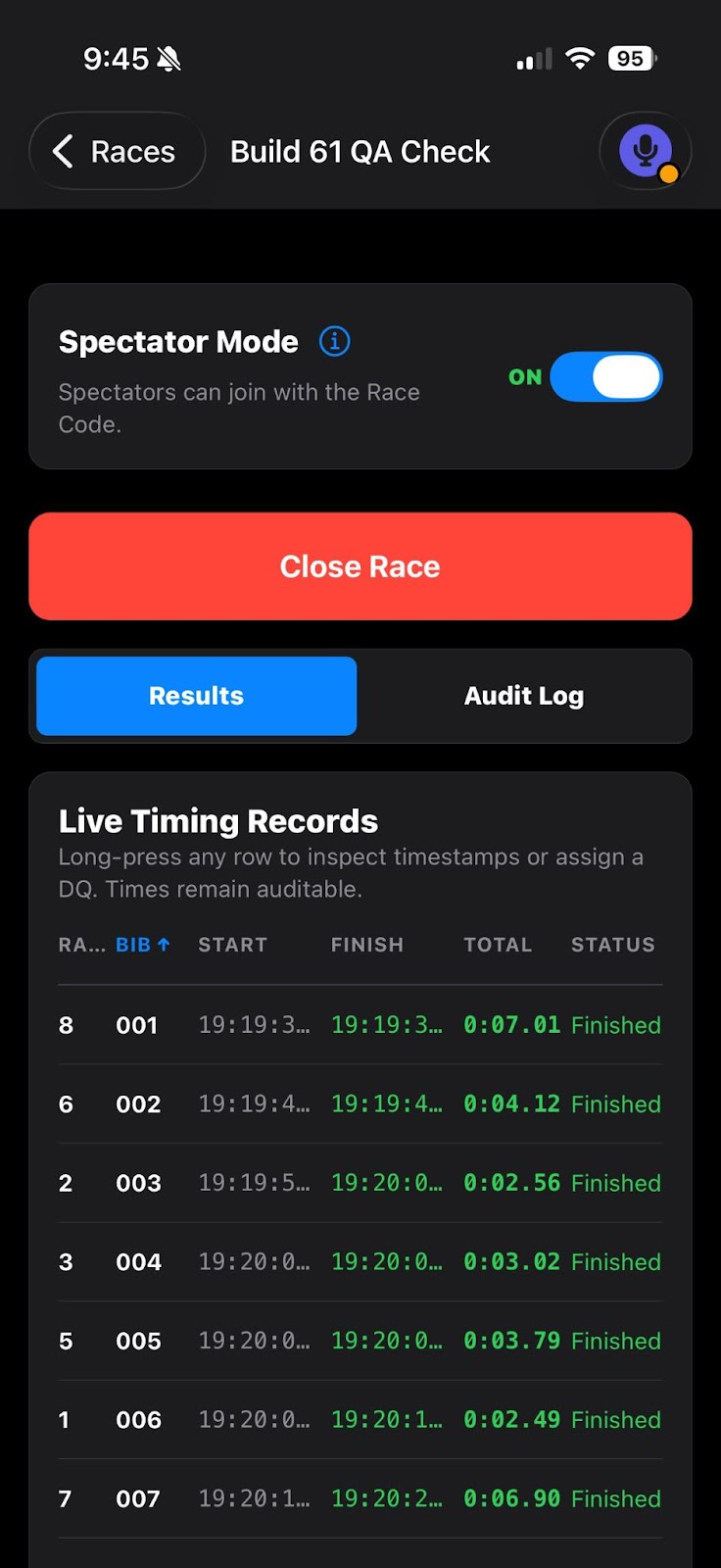
Read-only spectator results when the Director enables them.
Read-only spectator results when the Director enables them. Presentation · slide 11
Inspect results from the desktop web console.
Inspect results from the desktop web console. Presentation · slide 16
05

Review and export

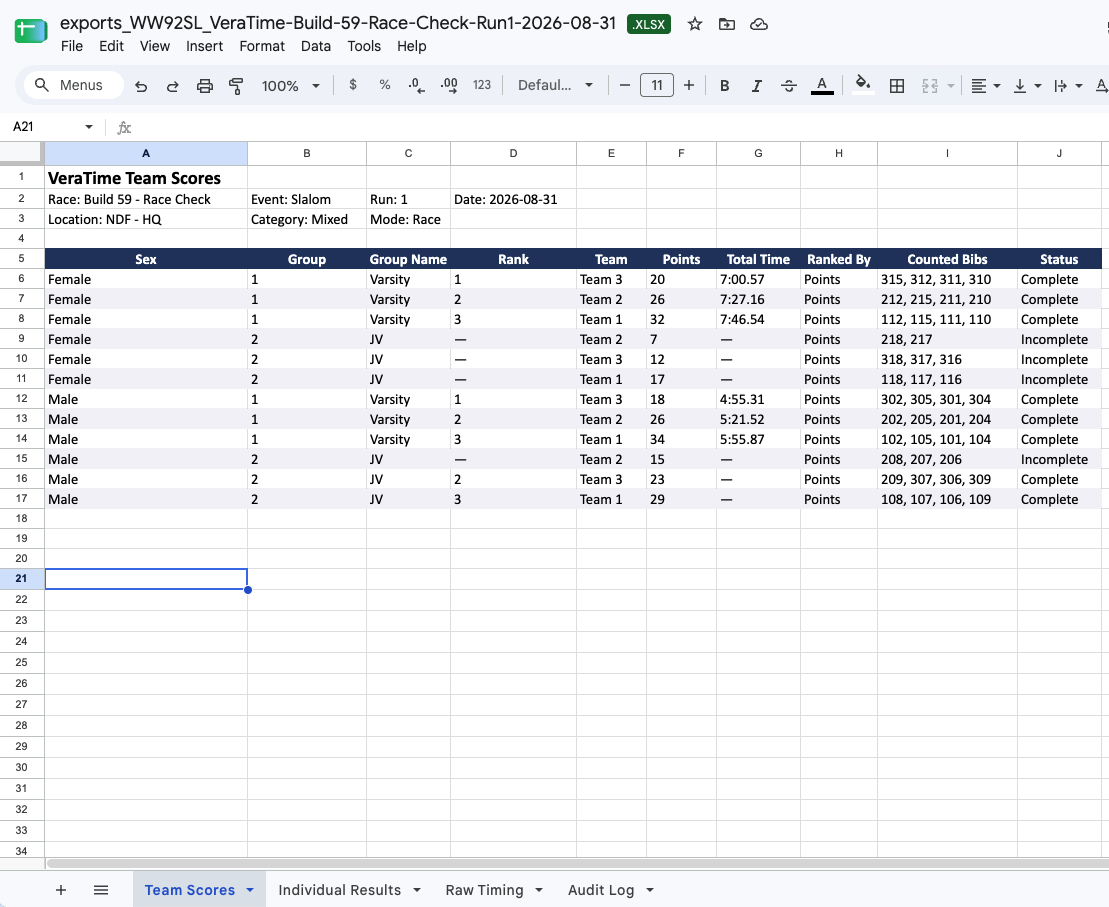
Correct assignments without deleting finish timestamps. Check the export in the receiving spreadsheet.
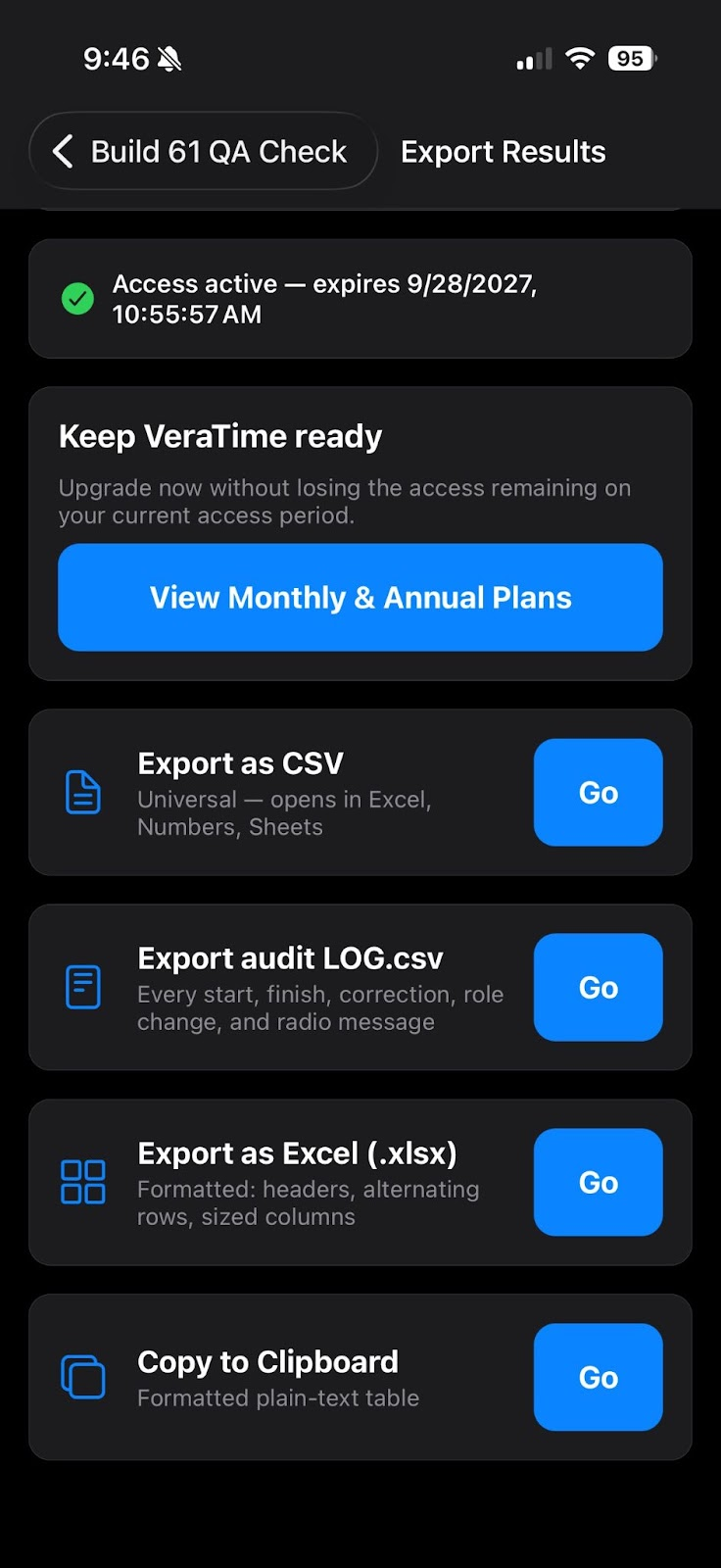
Select the result or timing-data export you need.
Select the result or timing-data export you need. Presentation · slide 9
A spreadsheet-ready record, without recopying every time.
A spreadsheet-ready record, without recopying every time. Presentation · slide 9
06

Measurement needs context

The histogram is a historical hand-timing example from the presentation. Camera trial figures describe specific builds and runs; they are not universal precision guarantees.
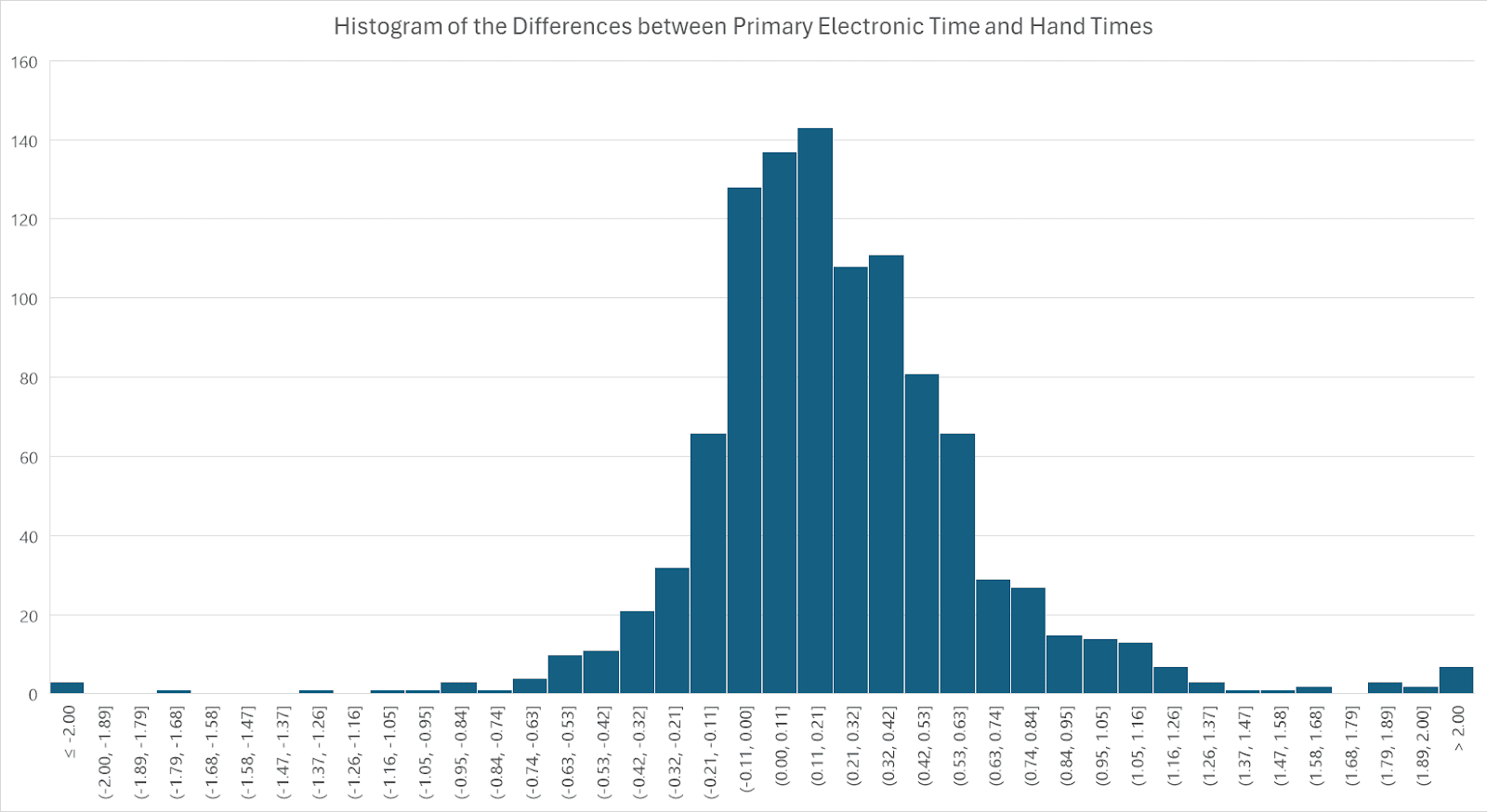
Historical hand-timing distribution from the presentation; not a universal accuracy claim.
Historical hand-timing distribution from the presentation; not a universal accuracy claim. Presentation · slide 15
07

Timing wherever the crew works

The product family connects mobile capture with the web. Store and device capability should be verified for the current build.


VeraTime Race: Race Anyone, Anywhere.
VeraTime Race: Race Anyone, Anywhere. Presentation · slide 1
Let’s talk timing: one workflow from capture to review.
Let’s talk timing: one workflow from capture to review. Presentation · slide 17
VeraTime across the supported platforms.
VeraTime across the supported platforms. Presentation · slide 27
Use the presentation QR code to return to the product family.
Use the presentation QR code to return to the product family. Presentation · slide 27

Ready to try it?